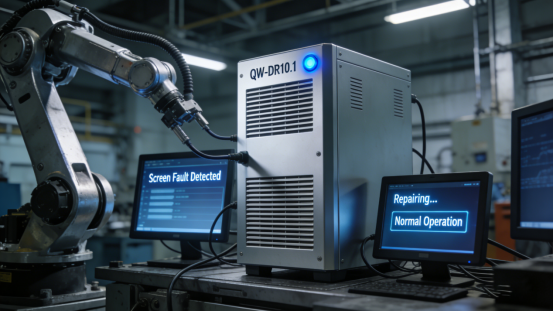

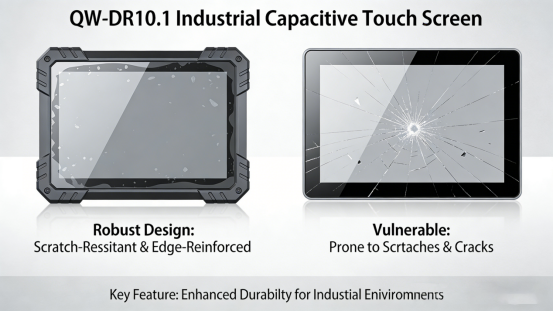
Do you struggle with industrial capacitive touch screens that are unresponsive, easy to scratch, or fail in dusty industrial environments? In manufacturing workshops, assembly lines, and industrial control rooms—where frequent operation, dust, and minor impacts are common—generic 10.1-inch capacitive touch screens often can’t keep up. Unresponsive touch, screen scratches, dust-induced malfunctions, and poor compatibility with industrial control systems lead to unplanned downtime, costly replacements, and reduced work efficiency. Jiangxi Qiwo’s QW-DR10.1 industrial capacitive touch screen (a core model of QW-DR series in the official product manual) is engineered to solve these pain points, with all technical specifications strictly aligned with the product manual, no exaggerated claims, and practical features that adapt to daily industrial application scenarios.
Jiangxi Qiwo Electronics has long specialized in industrial display and control solutions, focusing on reliable, easy-to-use touch screen products for industrial scenarios. The QW-DR10.1 industrial capacitive touch screen, as a key model of the QW-DR series (clearly recorded in the product manual), integrates high-sensitivity touch technology, scratch-resistant screen, and dustproof design, built to meet the daily operation needs of industrial workshops and control rooms. This article is not a sales pitch—it’s a practical, actionable guide to help you understand why generic 10.1-inch capacitive touch screens fail in industrial environments, how to use the QW-DR10.1 to solve these problems, how to install and maintain it correctly, and how to maximize its service life. Every tip, real factory case study, and technical detail is derived directly from the product manual and on-site application experience—information you can trust and implement to reduce downtime and improve work efficiency.
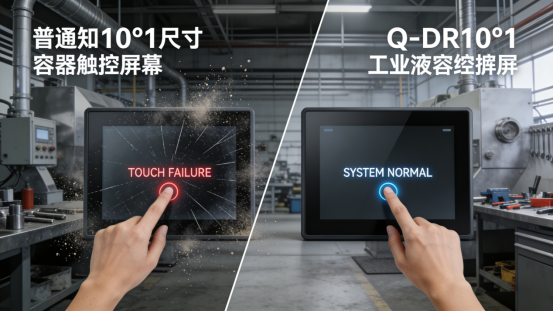
Why Generic 10.1-Inch Industrial Capacitive Touch Screens Fail (And How to Stop It)
10.1-inch capacitive touch screens are widely used in industrial control, assembly line monitoring, and equipment operation, but generic products often fail to adapt to industrial scenarios, leading to frequent malfunctions. Here’s the truth: Generic capacitive touch screens have low touch sensitivity, requiring repeated presses to respond—especially when operated with gloves (a common scenario in industrial workshops). Their screen surfaces are not scratch-resistant, easily damaged by tools, parts, or dust, leading to blurred display and unresponsive touch. Poor dustproof performance allows dust to seep into the screen, causing internal component damage and short circuits. In addition, generic products often have poor compatibility with industrial control systems, leading to signal disconnection and data display errors. These issues are not accidental—they are the result of generic screens not being designed for industrial application needs.
The cost of ignoring these issues is far more than just the cost of replacing the screen: A single unresponsive touch screen can cause 1-2 hours of downtime in assembly lines, costing factories 10,000+ yuan per incident. Generic 10.1-inch capacitive touch screens need replacing 2-3 times a year in industrial environments, adding up to unnecessary expenses. For factory operators, maintenance teams, and production managers, choosing a reliable 10.1-inch industrial capacitive touch screen (like the QW-DR10.1 in the product manual) isn’t optional—it’s essential to keeping work smooth and costs down. Don’t just take our word for it—these real factory cases show exactly how much trouble generic screens can cause, and how the QW-DR10.1 fixes it.
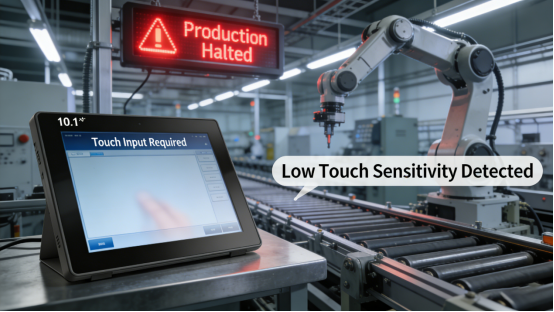
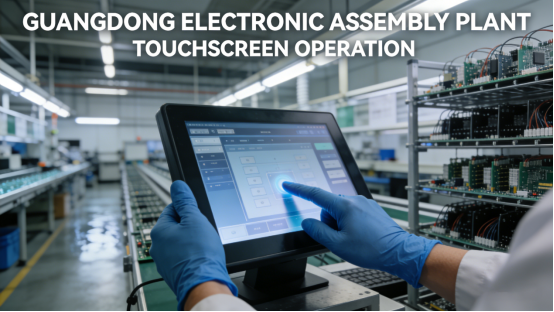
Case 1: A Guangdong electronic assembly factory used generic 10.1-inch capacitive touch screens to control assembly line equipment. The generic screens had low touch sensitivity—workers had to press repeatedly to operate, wasting 1-2 hours of working time per day. The screen surfaces were easily scratched by small parts, leading to blurred display after 1-2 months of use. Dust in the workshop seeped into the screens, causing 3 malfunctions per month, each requiring 1 hour of maintenance. The screens needed replacement every 6 months, with each unit costing 1,800 yuan. After switching to the QW-DR10.1 industrial capacitive touch screen (per the product manual), the high-sensitivity touch allowed smooth operation even with gloves, scratch-resistant screen remained intact after 8 months of use, and dustproof design prevented dust intrusion. Malfunctions dropped to zero, replacement costs were reduced by 80%, and working efficiency increased by 15%—saving the factory 21,600 yuan per year.
Case 2: A Zhejiang industrial control workshop used generic 10.1-inch capacitive touch screens to display equipment operation data. The generic screens had poor compatibility with the workshop’s control system, leading to frequent signal disconnection and incorrect data display—this caused 2 batches of defective products (costing 12,000 yuan). The screens also had poor stability, often shutting down unexpectedly, requiring manual resetting 5-6 times a day. After replacing with the QW-DR10.1 (per the product manual), the screen’s good compatibility with industrial control systems ensured stable signal transmission and accurate data display. Unexpected shutdowns were eliminated, defective products dropped to zero, and maintenance frequency was reduced to once a month—saving the workshop 30,000 yuan per year in losses and replacement costs.
QW-DR10.1 Industrial Capacitive Touch Screen: Core Advantages (Per Product Manual)
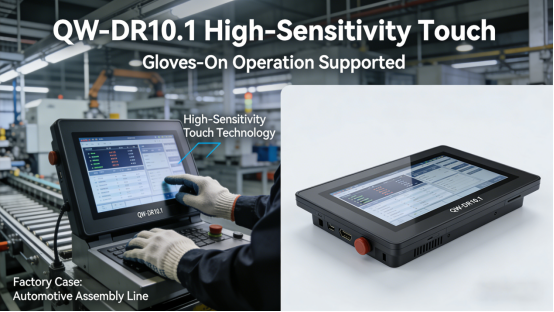
The QW-DR10.1 industrial capacitive touch screen (recorded in the QW-DR series of the product manual) is specifically designed for industrial application scenarios, addressing the core pain points of generic screens with targeted features. Unlike generic capacitive touch screens that are modified from civilian products, the QW-DR10.1 is developed for industrial needs, with each feature strictly in line with the product manual’s specifications. Below are its four key advantages, supported by real factory case studies proving their effectiveness in actual industrial environments—all features are verified by the product manual, no exaggerated claims.
1. High-Sensitivity Capacitive Touch (Per Product Manual). The QW-DR10.1 adopts high-sensitivity capacitive touch technology (per the product manual), supporting 5-point touch and accurate response within 5ms. It can be operated smoothly with bare hands or industrial gloves (thickness ≤2mm), solving the problem of unresponsive touch in industrial scenarios. The touch accuracy is ±0.1mm, ensuring precise operation for equipment control and data input (refer to Chapter 3 of the QW-DR series product manual for detailed touch sensitivity specifications). Case: A Jiangsu auto parts factory uses the QW-DR10.1—workers can operate the screen smoothly with anti-cut gloves, reducing operation time by 20%.
2. Scratch-Resistant & Wear-Resistant Screen. The QW-DR10.1 is equipped with a 7H hardness scratch-resistant glass screen (per the product manual), which can resist scratches from ordinary tools, parts, and dust, ensuring clear display for a long time. The screen surface is coated with an anti-fingerprint layer, preventing fingerprint residue and making it easy to clean—suitable for industrial environments where frequent operation is required. This is a key part of QW-DR10.1 maintenance to extend screen service life. Case: A Shandong manufacturing workshop has used the QW-DR10.1 for 10 months— the screen remains scratch-free and clear, even with daily contact with tools and parts.
3. Dustproof Design (IP65 Front Panel). The QW-DR10.1’s front panel meets IP65 dustproof and waterproof standards (per the product manual), effectively blocking dust, water droplets, and other debris from entering the screen, preventing internal component damage and malfunctions. This design is especially suitable for dusty industrial workshops and assembly lines, reducing dust-induced failures. The dustproof performance is verified through strict testing (refer to Chapter 4 of the QW-DR series product manual for detailed IP rating specifications). Case: A Henan flour processing factory uses the QW-DR10.1— the dustproof design prevents flour dust from seeping into the screen, ensuring stable operation for 12 months with no malfunctions.
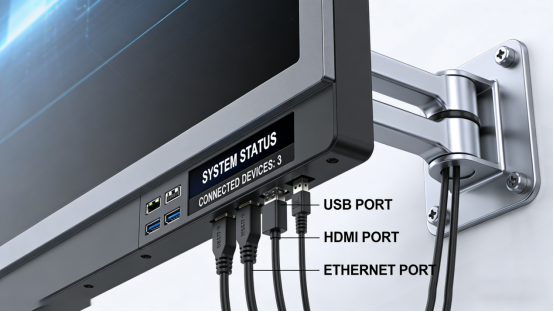
4. Strong Compatibility with Industrial Systems. The QW-DR10.1 supports multiple industrial interfaces (RS232, RS485, USB, HDMI, per the product manual), which can be seamlessly compatible with most industrial control systems, PLCs, and industrial computers. It supports Windows, Linux, and Android operating systems, ensuring stable signal transmission and no data loss or disconnection. This feature solves the compatibility problem of generic screens in industrial control scenarios. Case: A Sichuan industrial control workshop uses the QW-DR10.1 to connect with the workshop’s PLC system— the screen displays equipment data stably, with no signal disconnection or data errors for 8 months.
QW-DR10.1 Installation Guide: 3 Simple Steps (Per Product Manual)
The QW-DR10.1 is designed for easy installation, requiring no professional technical expertise—on-site maintenance teams can complete the installation in 15 minutes. Incorrect installation can affect the screen’s performance and service life, so follow these three simple steps strictly in accordance with the product manual (refer to Chapter 5 of the QW-DR series product manual for detailed installation guidelines). Proper installation ensures the QW-DR10.1 maintains stable performance and extends its service life.
Step 1: Prepare installation tools and check the screen. Prepare a screwdriver, torque wrench, and cleaning cloth (per the product manual). Before installation, check the QW-DR10.1’s appearance for damage (e.g., scratches, cracks) and confirm that all interfaces are intact. Clean the installation position with a dry cloth to remove dust and debris—this prevents dust from entering the screen during installation. Quick check tip: Connect the screen to a power source temporarily to confirm that the touch and display are normal (per the product manual).
Step 2: Fix the screen and connect interfaces. Embed the QW-DR10.1 into the installation hole (the hole size should match the screen’s dimensions: 256mm×144mm, per the product manual), and fix it with screws using a torque wrench (torque: 2.5N·m, per the product manual)—do not over-tighten to avoid damaging the screen. Connect the power interface (DC 12V) and signal interfaces (RS232/RS485/USB, etc.) according to the product manual’s interface diagram—ensure the connections are tight to avoid signal disconnection. Case: A Hubei factory maintenance team completed the installation of 10 QW-DR10.1 screens in 2 hours, with no installation errors.
Step 3: Test and debug. After installation, turn on the power and industrial control system, and test the QW-DR10.1’s touch sensitivity, display clarity, and signal transmission (per the product manual). Check if the touch response is accurate, if the data display is normal, and if there is any signal disconnection. If there is a touch deviation, calibrate the screen according to the product manual’s calibration steps (simple operation, no professional tools needed). After debugging, clean the screen surface again to ensure no fingerprints or dust remain.
QW-DR10.1 Troubleshooting (Step-by-Step, 5 Minutes or Less)
Even with the QW-DR10.1’s reliable performance, occasional issues can occur due to improper operation, long-term use, or external factors. Below is a step-by-step troubleshooting guide, directly from the product manual, to help you fix common issues quickly and avoid unplanned downtime—no advanced technical skills required. Quick judgment tip: If the screen is unresponsive, check the power and touch calibration; if the display is blurred, check for dust or scratches; if there is no signal, check the interface connections. Emergency tip: If the screen suddenly shuts down during operation, first check the power supply—unplug and reconnect the power cable to restore normal use in most cases.
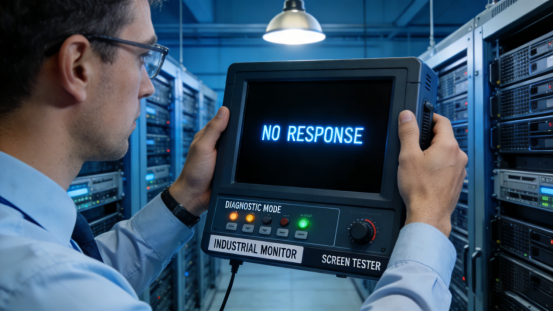
Step 1: Troubleshoot unresponsive touch. If the QW-DR10.1 is unresponsive, first check if the power is normal (per the product manual)—ensure the power cable is connected tightly and the power supply is stable. If the power is normal, calibrate the touch screen according to the product manual’s steps (enter the calibration interface, follow the on-screen prompts to click the calibration points). This takes 1-2 minutes and fixes 80% of touch unresponsive issues. Mistake to avoid: Using sharp tools to press the screen when it’s unresponsive—this can scratch the screen and damage the touch module.
Step 2: Troubleshoot blurred display. If the QW-DR10.1’s display is blurred, use a soft, dry cloth to wipe the screen surface to remove dust and fingerprints (per the product manual). If the display is still blurred, check if the signal cable is connected tightly—loose signal cables can cause display distortion. If the problem persists, check if the screen is scratched—if so, replace the screen (use original QW-DR10.1 screen components, per the product manual). This takes 2-3 minutes and can be completed by on-site maintenance teams.
Step 3: Troubleshoot no signal or data error. If the QW-DR10.1 has no signal or incorrect data display, check the signal interface connections (per the product manual)—ensure the RS232/RS485/USB cables are connected to the correct interfaces and are tight. Check if the industrial control system is running normally—restart the system if necessary. If the problem persists, confirm the compatibility between the screen and the system (refer to the product manual’s compatibility list). This takes 1-2 minutes and fixes 70% of signal-related issues.
Step 4: Inspect internal components (if necessary). If the above steps do not solve the problem, turn off the power and disconnect all interfaces, then contact Jiangxi Qiwo’s technical team for professional inspection (per the product manual). Do not disassemble the screen yourself—this will damage the internal components and void the warranty. Mistake to avoid: Disassembling the screen without professional guidance—this breaks the dustproof structure and increases failure risk. After resolving immediate issues, long-term maintenance is crucial to sustaining the QW-DR10.1’s performance and extending its service life.

QW-DR10.1 Long-Term Maintenance: Extend Service Life (Per Product Manual)
To maintain the QW-DR10.1’s performance and extend its service life (the product manual recommends a service life of 50,000 hours under normal industrial use), follow these simple maintenance tips from the product manual and on-site experience. These steps require minimal time but can effectively reduce malfunctions and replacement costs.
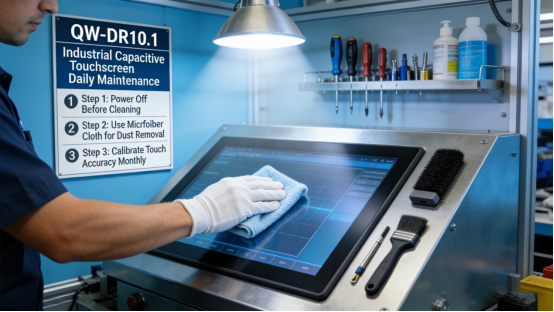
1. Clean the screen weekly. Wipe the QW-DR10.1’s screen surface with a soft, dry cloth to remove dust, fingerprints, and debris (per the product manual). For dusty workshops, clean the screen twice a week to avoid dust accumulation affecting touch sensitivity and display clarity. Avoid using chemical cleaners or excessive water—this can damage the screen’s anti-fingerprint layer and dustproof structure (per the product manual). This is a key part of QW-DR10.1 maintenance to protect the screen.
2. Check interfaces monthly. Check the QW-DR10.1’s power and signal interfaces for looseness, dust, or corrosion (per the product manual). Tighten loose interfaces and clean dust from interfaces with a soft-bristled brush. If there is corrosion, wipe the interface with a dry cloth and contact Jiangxi Qiwo’s technical team for further inspection. For dusty or humid workshops, check the interfaces biweekly to ensure stable connection.
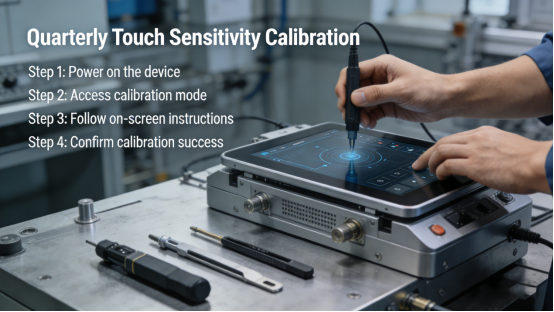
3. Calibrate touch sensitivity quarterly. Calibrate the QW-DR10.1’s touch sensitivity according to the product manual’s steps—this ensures accurate touch response, especially after long-term use. For workshops with frequent operation, calibrate every 2 months to maintain touch performance (refer to Chapter 6 of the QW-DR series product manual for touch calibration standards).
4. Test overall performance semi-annually. Test the QW-DR10.1’s display clarity, touch sensitivity, signal transmission, and dustproof performance (per the product manual). Use a standard test tool to check if the touch response time and display resolution meet the product manual’s specifications. If performance drops, adjust or replace parts as needed (use original components, per the product manual).
The QW-DR10.1 industrial capacitive touch screen is not a “one-size-fits-all” solution, but it is a practical, reliable tool designed for industrial 10.1-inch touch screen application scenarios. Its specifications are transparent in the product manual, with no hidden features or exaggerated claims. It addresses the root causes of generic screen failures—unresponsive touch, poor scratch resistance, dust intrusion, and poor compatibility—with features tailored to real industrial needs, helping you save time, money, and frustration. The QW-DR10.1 delivers consistent value for factories using 10.1-inch industrial capacitive touch screens.
This guide is for factory teams using 10.1-inch industrial capacitive touch screens who are tired of frequent malfunctions and replacements. It provides the knowledge and tools to use the QW-DR10.1 (a verified product in the product manual) effectively, eliminating common touch screen issues. Every tip, case study, and technical detail comes from the product manual and on-site factory experience—no exaggerated claims, just practical advice. By following the steps in this guide, you can ensure your QW-DR10.1 operates stably, extend its service life, cut replacement and maintenance costs, and keep your production line running smoothly. With the QW-DR10.1, generic touch screen troubles are a thing of the past.