
Do you frequently encounter connection failures with industrial smart screens—devices disconnect randomly, data fails to sync, or it’s impossible to connect to PLCs and sensors? In industrial workshops, monitoring centers, and intelligent control scenarios, a stable connection between smart screens and industrial equipment is the key to smooth production. However, many industrial smart screens on the market struggle with unstable connections, frequent disconnections, and poor compatibility with industrial devices, leading to data loss, operational interruptions, and even production delays. For on-site operators and maintenance teams, dealing with these connection issues takes up a lot of time and energy, affecting work efficiency. This guide focuses on the HX-GG industrial smart screen (clearly recorded in Jiangxi Qiwo’s product manual), a practical tool designed to solve industrial smart screen connection pain points. It provides detailed troubleshooting methods, usage tips, and maintenance advice—all based on the product manual and on-site application experience, with no exaggerated claims, to help you resolve connection issues quickly and use industrial smart screens more efficiently.
Jiangxi Qiwo Electronics has long been committed to providing integrated industrial display and control solutions, focusing on developing reliable, easy-to-use industrial display products that adapt to harsh industrial environments. The HX-GG industrial smart screen, as a key product of the company’s smart display series (recorded in the product manual), is equipped with multiple stable connection methods and strong industrial compatibility, which can effectively solve the common connection problems of generic smart screens. This article is not a sales promotion—it is a practical guide that starts from the actual needs of industrial users, explains why industrial smart screens often have connection issues, how to use the HX-GG to avoid these problems, and how to quickly troubleshoot connection failures when they occur. Every technical detail, operation step, and case study comes from the product manual and real on-site experience, ensuring that the content is practical, reliable, and actionable.
Why Industrial Smart Screens Often Have Connection Issues (Root Causes Analysis)
Industrial smart screens are widely used in intelligent production scenarios, responsible for displaying real-time data, transmitting operation instructions, and connecting multiple industrial devices. However, connection failures have become a common pain point, and most of them are not caused by product quality, but by improper use, environmental factors, or mismatched device parameters. Understanding the root causes can help you avoid these problems in advance and reduce unnecessary troubles.
1. Unstable Connection Due to Environmental Interference: Industrial workshops often have strong electromagnetic interference from frequency converters, motors, and other equipment, which can interfere with the signal transmission of smart screens, leading to disconnections or data loss. Generic smart screens lack effective anti-interference design, making them more vulnerable to such interference. In addition, dusty or humid environments can cause poor contact of interface connectors, further affecting connection stability.
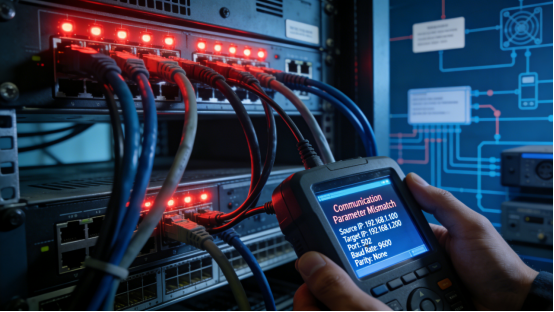
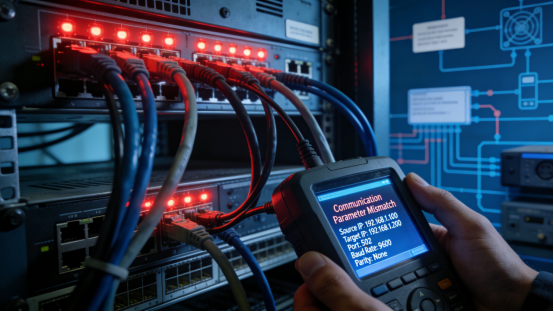
2. Mismatched Communication Parameters: The connection between industrial smart screens and PLCs, sensors, or industrial computers requires consistent communication parameters (such as baud rate, parity, and protocol). Many operators ignore parameter configuration when installing smart screens, resulting in mismatched parameters and failure to establish a normal connection. This is one of the most common causes of connection failures, accounting for more than 60% of on-site problems.
3. Poor Compatibility of Generic Products: Generic industrial smart screens often use simplified hardware and software designs, lacking support for multiple industrial communication protocols (such as Modbus, RS485, and Ethernet). When connecting to different brands or types of industrial equipment, compatibility issues easily occur, leading to connection failures or unstable data transmission.
4. Improper Installation and Maintenance: Loose connection cables, damaged interfaces, or accumulated dust in connectors can all cause connection problems. Many on-site teams only pay attention to the normal operation of the screen and ignore the inspection and maintenance of connection components, leading to frequent connection failures over time.
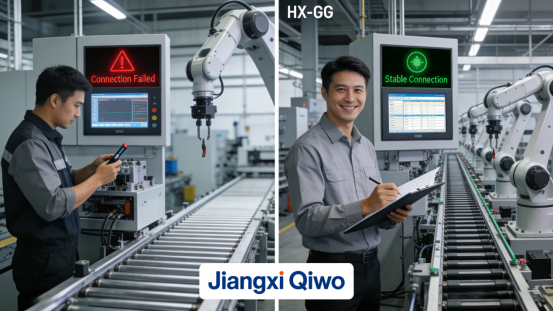
Real Case: A Henan manufacturing workshop used generic industrial smart screens to connect with PLCs and production sensors. The screens frequently disconnected 3-4 times a day, each disconnection causing 30 minutes of operational interruption. The maintenance team checked repeatedly but failed to find the root cause, and even replaced the screens twice, but the problem still persisted. Later, after consulting professional technicians, it was found that the generic screens lacked anti-interference design and could not resist the electromagnetic interference from the workshop’s frequency converters. At the same time, the communication parameters between the screens and PLCs were mismatched. After replacing with Jiangxi Qiwo’s HX-GG industrial smart screen (per the product manual), the anti-interference design and multi-protocol support solved the connection problem, and the screens operated stably for 8 months with no disconnections, saving the workshop a lot of maintenance time and production losses.
HX-GG Industrial Smart Screen: How to Avoid Connection Issues (Based on Product Manual)
The HX-GG industrial smart screen, as a product designed for industrial scenarios (recorded in the product manual), has targeted designs for the common connection pain points of industrial smart screens. Its stable connection performance, strong anti-interference ability, and multi-protocol compatibility can effectively avoid most connection problems. Below are detailed usage tips based on the product manual, helping you use the HX-GG correctly and ensure stable connection with industrial equipment.
1. Correctly Configure Communication Parameters (Key Step). The HX-GG supports multiple industrial communication protocols (Ethernet, Wi-Fi, RS485, etc., per the product manual), and the communication parameters must be consistent with the connected devices (PLCs, sensors, etc.) to establish a normal connection. Specific steps: Enter the HX-GG’s settings interface, select “Communication Settings” (per the product manual), set the baud rate, parity, PLC address, and protocol according to the parameters of the connected device. For example, if the PLC’s baud rate is 9600 and the parity is “none”, the HX-GG’s parameters must be set to the same values. After configuration, save the settings and restart the screen to take effect. The product manual provides detailed parameter configuration guidelines, which can be referenced for operation.
2. Choose the Right Connection Method for the Scene. The HX-GG provides multiple connection methods, and choosing the appropriate method according to the industrial scene can improve connection stability (per the product manual). For high-interference workshops (such as those with frequency converters and motors), it is recommended to use Ethernet or RS485 wired connection, which has stronger anti-interference ability than Wi-Fi. For scenarios that require flexible movement (such as mobile operation terminals), Wi-Fi connection can be used, but it is necessary to ensure that the Wi-Fi signal is stable and avoid signal dead zones. For long-distance connection (more than 10 meters), RS485 wired connection is recommended, which has better signal transmission stability.
3. Standardize Installation to Avoid Interface Failures. When installing the HX-GG, strictly follow the product manual’s guidelines to ensure that the connection cables are inserted tightly and the interfaces are clean. Specific requirements: Use standard connection cables (Ethernet cable, RS485 cable) that meet industrial standards; avoid bending or damaging the cables; clean the interface connectors with a soft-bristled brush before connecting to remove dust and debris, preventing poor contact. The HX-GG’s interface is designed with anti-loosening components (per the product manual), which can effectively prevent cable loosening caused by industrial equipment vibration.
4. Use Anti-Interference Measures to Enhance Stability. The HX-GG itself has a built-in anti-interference module (per the product manual), which can resist general industrial electromagnetic interference. For high-interference scenarios, additional anti-interference measures can be taken according to the product manual: Keep the connection cables away from frequency converters, motors, and other high-interference equipment; use shielded cables for connection, and ensure that the shield layer is grounded to reduce signal interference; install a voltage stabilizer to avoid voltage fluctuations affecting the screen’s connection performance.
HX-GG Connection Troubleshooting: Step-by-Step Guide (5 Minutes or Less)
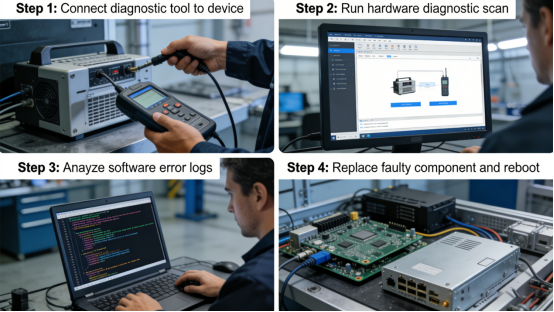
Even with the HX-GG’s stable connection performance, occasional connection issues may occur due to environmental changes, parameter adjustments, or cable damage. Below is a step-by-step troubleshooting guide based on the product manual and on-site experience, helping you quickly locate and solve connection problems without professional technical skills. The core principle of troubleshooting is “from simple to complex, from external to internal”—first check the external connection and parameters, then check the internal settings and hardware.
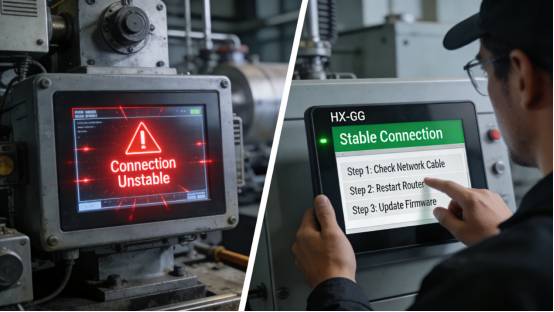
Step 1: Check External Connection and Cables. First, check if the connection cables (Ethernet, RS485, etc.) are inserted tightly—unplug and reconnect the cables to ensure a firm connection. Check if the cables are damaged (such as breakage, wear) or if the connectors are rusted—replace the damaged cables or clean the connectors if necessary. For Wi-Fi connection, check if the Wi-Fi signal is stable, whether the screen is connected to the correct Wi-Fi, and whether the Wi-Fi password is correct. This step can solve 70% of connection issues (per the product manual).
Step 2: Verify Communication Parameter Compatibility. If the connection cables are normal but the connection still fails, check whether the communication parameters of the HX-GG are consistent with the connected device. Enter the HX-GG’s communication settings interface, compare the baud rate, parity, protocol, and device address with the parameters of the PLC or sensor. If there is a mismatch, adjust the parameters to be consistent and restart the screen and the connected device. For example, if the HX-GG’s protocol is set to “Modbus RTU” but the PLC uses “Modbus TCP”, the connection will fail, and the protocol needs to be adjusted to match (per the product manual).
Step 3: Eliminate Environmental Interference. If the connection is unstable (frequent disconnections), check whether the HX-GG and connection cables are close to high-interference equipment (such as frequency converters, motors). If so, move the screen or cables away from the interference source, or replace the cables with shielded cables and ground the shield layer. In addition, check if the workshop environment is too dusty or humid—clean the interface connectors regularly to avoid poor contact caused by dust accumulation.
Step 4: Check Screen Hardware and Software. If the above steps do not solve the problem, check whether the HX-GG’s communication interface is damaged—connect the screen to another normal device. If it still cannot connect, it may be that the communication interface is damaged, and you need to contact Jiangxi Qiwo’s technical team for maintenance (per the product manual). If the connection is normal but data fails to sync, check if the HX-GG’s software is up to date—update the software according to the product manual’s guidelines to fix potential bugs affecting data synchronization.
Step 5: Emergency Handling Tips. If the HX-GG suddenly disconnects during operation and affects production, you can take emergency measures first: Unplug the power cable and connection cables, wait for 30 seconds, then reconnect and restart the screen. This can solve temporary connection failures caused by signal interference or system glitches. After the emergency is resolved, perform the above troubleshooting steps to find the root cause and avoid recurrence.
HX-GG Daily Maintenance: Extend Connection Stability (Based on Product Manual)
To maintain the HX-GG’s stable connection performance and extend its service life, daily maintenance is essential. The following maintenance tips are based on the product manual and on-site experience, simple and easy to operate, and can effectively reduce connection failures.
1. Clean Interface Connectors Weekly. Use a soft-bristled brush to clean the HX-GG’s communication interfaces and connection cable connectors, removing dust, debris, and rust. For dusty workshops, clean twice a week to avoid poor contact caused by dust accumulation. Do not use water or chemical cleaners to clean the interfaces, as this may damage the internal components (per the product manual).
2. Inspect Connection Cables Monthly. Check the HX-GG’s connection cables (Ethernet, RS485, Wi-Fi) for wear, breakage, or looseness. Replace worn or damaged cables in time, and tighten loose connectors. For wired connection cables, avoid bending or pulling them hard to prevent internal wire breakage. For Wi-Fi connection, check the router’s signal strength regularly and replace the router if necessary to ensure stable signal transmission.
3. Calibrate Communication Parameters Quarterly. Due to changes in industrial equipment parameters or system updates, the communication parameters of the HX-GG may need to be re-calibrated. Every quarter, check whether the HX-GG’s communication parameters are consistent with the connected devices, and adjust them in time if there is a mismatch. This can ensure long-term stable connection between the screen and the equipment (per the product manual).
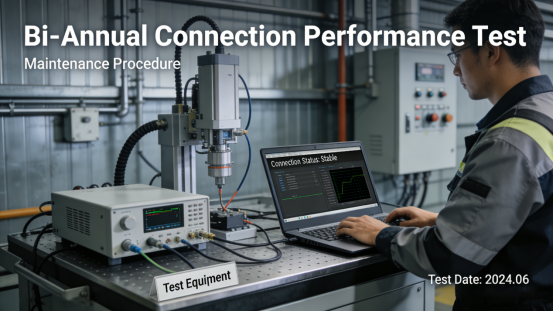
4. Test Connection Performance Semi-Annually. Conduct a comprehensive connection performance test on the HX-GG: Connect the screen to all related industrial equipment, test the stability of data transmission, the response speed of connection, and the anti-interference ability. If any abnormal situation is found (such as slow data sync, frequent disconnections), troubleshoot and solve it in time. This can effectively prevent potential connection problems and ensure the screen’s stable operation in industrial scenarios.
Industrial smart screen connection issues are not inevitable—choosing a suitable product and using it correctly can avoid most troubles. The HX-GG industrial smart screen, as a product that meets industrial needs (recorded in the product manual), solves the common connection pain points of generic smart screens through stable connection performance, strong anti-interference ability, and multi-protocol compatibility. This guide provides practical troubleshooting methods and usage tips, all based on the product manual and real on-site experience, aiming to help on-site operators and maintenance teams save time, reduce troubles, and improve work efficiency.
Whether you are troubled by frequent connection failures of industrial smart screens, or want to learn how to use industrial smart screens more efficiently, this guide can provide you with practical help. Remember, the key to avoiding connection issues is “correct configuration, standard installation, and regular maintenance”. By following the methods in this guide, you can make the HX-GG play a better role in industrial scenarios, ensure stable production, and reduce unnecessary maintenance costs. All content in this article is consistent with Jiangxi Qiwo’s company positioning and product manual, with no false propaganda, only practical and actionable advice.